Making a game using an ECS architecture (C++): Part 6 - Game class
In this section, we'll create a game class, which will hold instances of all managers (entity, component, system, state...etc.). We'll create the base structure of this class, and add parts to it in future sections.
If you've read Part 4, this should be pretty similar.
We are splitting all game functions into a CGame class, and calling it from Main.cpp
We make a static function to get CGame class in case we need to call it from elsewhere.
// Game.h.

#pragma once

class CGame {
public:
    // Constructor and destructor.
    CGame();
    ~CGame();

public:
    // Initialize and finalize.
    bool Initialize();
    bool Finalize();

    // Update.
    void Update();

    // Render.
    void Render();

public:
    static CGame& GetInstance();

private:
    // Functions.
    bool CheckIsExitLoop();

public:
    inline const bool& GetIsEndGame() { return m_IsEndGame; }

private:
    // End game status.
    bool m_IsEndGame = false;
};
// Game.cpp.

#include "Game.h"

#include <DxLib.h>

#include "Macro.h"

CGame* m_pGameInstance = nullptr;

CGame& CGame::GetInstance()
{
    return *m_pGameInstance;
}

CGame::CGame()
{
    m_pGameInstance = this;
}

CGame::~CGame()
{
    m_pGameInstance = nullptr;
}

// Initialize.
bool CGame::Initialize()
{
    // Settings before launching application goes here.
    VRETURN_RET(SetOutApplicationLogValidFlag(TRUE) == 0, false);
    VRETURN_RET(SetGraphMode(SCREEN_WIDTH, SCREEN_HEIGHT, 32) == 0, false);  // Set resolution.
    VRETURN_RET(SetWindowSize(SCREEN_WIDTH, SCREEN_HEIGHT) == 0, false);     // Set window size.
    VRETURN_RET(ChangeWindowMode(TRUE) == 0, false);                         // Window mode/Fullscreen: true for windowed mode.
    VRETURN_RET(SetMainWindowText("Game") == 0, false);                      // Name of the window.
    VRETURN_RET(SetAlwaysRunFlag(TRUE) == 0, false);                         // Game runs in background.
    VRETURN_RET(SetWaitVSyncFlag(TRUE) == 0, false);                         // Limits FPS.

    // Launch application.
    VRETURN_RET(DxLib_Init() == 0, false);

    // Settings after launching application goes here.
    VRETURN_RET(SetDrawScreen(DX_SCREEN_BACK) == 0, false);

    return true;
}

// Finalize.
bool CGame::Finalize()
{
    // End application.
    VRETURN_RET(DxLib_End() == 0, false);

    return true;
}

// Update.
void CGame::Update()
{
    // Main program here.
    while (!CheckIsExitLoop())
    {
        Render();
    }

    m_IsEndGame = true;
}

// Render.
void CGame::Render()
{
    DrawFormatString(0, 0, WHITE, "Hello World!");
}

// Check if the loop should be ended.
bool CGame::CheckIsExitLoop()
{
    VRETURN_RET((ScreenFlip() == 0), true);                    // Switch the front and back screen.
    VRETURN_RET((ClearDrawScreen() == 0), true);               // Clear everything drawn on the screen.
    RETURN_RET((CheckHitKey(KEY_INPUT_ESCAPE)) == 0, true);    // Set game to end if escape key is pressed.
    VRETURN_RET((ProcessMessage() == 0), true);                // Allows Windows to process other applications/services.

    return false;
}
Now that we have moved everything game-related, our Main.h becomes empty!
// Main.h.

#pragma once
In Main.cpp, we create a new game instance and execute the Initialize, Update and Finalize functions of it.
// Main.cpp.

#include "Main.h"

#include <DxLib.h>
#include "Macro.h"
#include "Game.h"

int WINAPI WinMain(_In_ HINSTANCE hInstance, _In_opt_ HINSTANCE hPrevInstance, _In_ LPSTR lpCmdLine, _In_ int nShowCmd)
{
    // Create a new game instance.
    CGame* pGame = new CGame();
    VRETURN_RET(pGame != nullptr, -1);

    // Initialize game application.
    VRETURN_RET(pGame->Initialize(), -1);

    // Don't do anything until escape is pressed, or an error occurs.
    while (!pGame->GetIsEndGame())
    {
        pGame->Update();
    }

    // Finalize game application.
    VRETURN_RET(pGame->Finalize(), -1);
    delete pGame;
    pGame = nullptr;

    return 0;
}
In the next part, we'll start to create base classes for entity, component and system (finally!).
Making a game using an ECS architecture (C++): Part 5 - Error checking and Macros
In the previous section, we have made our code organized. This is a great improvement, but let's fine-tune it a bit more. In game programming, there is a lot of error and null checks. Let's add some macros to shorten them. Also, while we're at it, let's move our current macros to another file.
// Macro.h.

#pragma once

extern void Assert(bool _check);

// Error check.
#define ASSERT(check) Assert(check)
#define RETURN(check) do { if (!(check)) { return; } } while (false)
#define RETURN_RET(check, returnValue) do { if (!(check)) { return returnValue; } } while (false)
#define VRETURN(check) do { if (!(check)) { ASSERT(check); return; } } while (false)
#define VRETURN_RET(check, returnValue) do { if (!(check)) { ASSERT(check); return (returnValue); } } while (false)
#define CONTINUE(check) if (!(check)) continue
#define VCONTINUE(check) if (!(check)) ASSERT(check); if (!(check)) continue
#define BREAK(check) if (!(check)) break
#define VBREAK(check) if (!(check)) ASSERT(check); if (!(check)) break

// Macros to increase readability.
#define SCREEN_WIDTH 800
#define SCREEN_HEIGHT 600
#define COLOR_BIT_DEPTH 32

// Colors.
#define WHITE GetColor(255, 255, 255)
#define BLACK GetColor(0, 0, 0)
#define RED GetColor(255, 0, 0)
#define GREEN GetColor(0, 255, 0)
#define BLUE GetColor(0, 0, 255)
// Macro.cpp.

#include "Macro.h"

// If the condition is false, throw exception.
// The program will pause here if an exception is triggered.
void Assert(bool _check)
{
    if (!_check) {
        throw(0);
    }
}
This gives us a convenient way to perform a null/condition check, while using return/break/continue all with one statement. I also added some macros for some colors we might use in the future.
Now, let's apply the macros to our main code.
// Main.h.

#pragma once

#include "Macro.h"

// Temporary variable to represent something in-game triggering the game to end.
bool bEndGame = false;

// Settings before launching application.
bool PreInit()
{
    // Settings before launching application goes here.
    VRETURN_RET(SetOutApplicationLogValidFlag(TRUE) == 0, false);
    VRETURN_RET(SetGraphMode(SCREEN_WIDTH, SCREEN_HEIGHT, 32) == 0, false);  // Set resolution.
    VRETURN_RET(SetWindowSize(SCREEN_WIDTH, SCREEN_HEIGHT) == 0, false);     // Set window size.
    VRETURN_RET(ChangeWindowMode(TRUE) == 0, false);                         // Window mode/Fullscreen: true for windowed mode.
    VRETURN_RET(SetMainWindowText("Game") == 0, false);                      // Name of the window.
    VRETURN_RET(SetAlwaysRunFlag(TRUE) == 0, false);                         // Game runs in background.
    VRETURN_RET(SetWaitVSyncFlag(TRUE) == 0, false);                         // Limits FPS.

    return true;
}

// Settings after launching application.
bool PostInit()
{
    VRETURN_RET(SetDrawScreen(DX_SCREEN_BACK) == 0, false);

    return true;
}

// Check if the game should end.
bool IsEndGame()
{
    VRETURN_RET((ScreenFlip() == 0), true);                    // Switch the front and back screen.
    VRETURN_RET((ClearDrawScreen() == 0), true);               // Clear everything drawn on the screen.
    RETURN_RET((CheckHitKey(KEY_INPUT_ESCAPE)) == 0, true);    // Set game to end if escape key is pressed.
    VRETURN_RET((ProcessMessage() == 0), true);                // Allows Windows to process other applications/services.

    return false;
}
// Main.cpp.

#include <DxLib.h>

#include "Main.h"

int WINAPI WinMain(_In_ HINSTANCE hInstance, _In_opt_ HINSTANCE hPrevInstance, _In_ LPSTR lpCmdLine, _In_ int nShowCmd)
{
    // Settings before launching application goes here.
    VRETURN_RET(PreInit(), -1);

    // Launch application.
    VRETURN_RET((DxLib_Init() == 0), -1);

    // Settings after launching application goes here.
    VRETURN_RET(PostInit(), -1);

    // Don't do anything until escape is pressed, or an error occurs.
    while (!IsEndGame())
    {
        DrawFormatString(0, 0, WHITE, "Hello World!");
    }

    // End application.
    DxLib_End();

    return 0;
}
Now we have a pretty simple but good macro system for error checks, and a well organized program structure.
You could make the Assert function fancier, by showing a Windows MessageBox popup window, or adding messages showing where the assert came from (file name, line number...etc.), but this should do for now.
When the assert is triggered, your program will pause as if you used a breakpoint, so you can check where the problem is by checking the call stack.
You can check if your Assert function works by adding a ASSERT(false); anywhere in your main function.
In the next part, let's add a Game class. This class will contain managers for entity, components and systems and control many aspects of our game. We won't be adding all those in one section, but we'll be creating the base structure of the class.
Making a game using an ECS architecture (C++): Part 4 - Refactoring and Good Coding Habits
In the previous section, we have adjusted some fundamental settings and slightly improved our quality of life.
To make newly added functions nice and clear, I have made minimal changes and used them in their simplest form. However, over time, the code becomes long and unreadable if they are not organized. So, in this section, I will talk about refactoring and good coding habits.
This section is completely optional, but can be used regardless of the library you are using. Some parts of this section is a little bit long, so some things may not be explained in full detail. Leave a comment if there is something you don't understand.
First, let's start by making our main function clean and organized.
- Group functions into "stuff that executes once before DxLib initialization", "stuff that executes once after DxLib initialization" and "stuff that executes every game loop".
- Make sure that every function has executed successfully, by checking the value returned from the function. In DxLib most functions return 0 if it has executed without errors.
- Make all numbers well defined so you know what they are for in the future.
Creating a header file "Main.h" and doing the above results in:
// Main.h.

#pragma once

// Defines to increase readability.
#define SCREEN_WIDTH 800
#define SCREEN_HEIGHT 600
#define COLOR_BIT_DEPTH 32
#define WHITE GetColor(255, 255, 255)

// Settings before launching application.
bool PreInit()
{
    bool bError = false;

    bError |= (SetOutApplicationLogValidFlag(TRUE) != 0);                          // Whether or not to output a log file.
    bError |= (SetGraphMode(SCREEN_WIDTH, SCREEN_HEIGHT, COLOR_BIT_DEPTH) != 0);   // Set resolution and color bit depth.
    bError |= (SetWindowSize(SCREEN_WIDTH, SCREEN_HEIGHT) != 0);                   // Set window size.
    bError |= (ChangeWindowMode(TRUE) != 0);                                       // Window mode/Fullscreen: true for windowed mode.
    bError |= (SetMainWindowText("Game") != 0);                                    // Name of the window.
    bError |= (SetAlwaysRunFlag(TRUE) != 0);                                       // Game runs in background.
    bError |= (SetWaitVSyncFlag(TRUE) != 0);                                       // Wait for Vsync or not.

    return bError;
}

// Settings after launching application.
bool PostInit()
{
    bool bError = false;

    bError |= (SetDrawScreen(DX_SCREEN_BACK) != 0);    // Set screen to render on the back screen.

    return bError;
}

// Check if the game should end.
bool IsEndGame()
{
    bool bResult = false;

    bResult |= ScreenFlip() != 0;                   // Switch the front and back screen.
    bResult |= ClearDrawScreen() != 0;              // Clear everything drawn on the screen.
    bResult |= CheckHitKey(KEY_INPUT_ESCAPE) != 0;  // Set game to end if escape key is pressed.
    bResult |= ProcessMessage() != 0;               // Allows Windows to process other applications/services.

    return bResult;
}
Next, we can now make our main function nice and clean by including "Main.h" and replacing the long code with the functions we made in the header:
// Main.cpp.

#include <DxLib.h>

#include "Main.h"

int WINAPI WinMain(_In_ HINSTANCE hInstance, _In_opt_ HINSTANCE hPrevInstance, _In_ LPSTR lpCmdLine, _In_ int nShowCmd)
{
    // Settings before launching application goes here.
    if (PreInit()) {
        return -1;
    }

    // Launch application.
    if (DxLib_Init() != 0) {
        return -1;
    }

    // Settings after launching application goes here.
    if (PostInit()) {
        return -1;
    }

    // Don't do anything until escape is pressed, or an error occurs.
    while (!IsEndGame())
    {
        DrawFormatString(0, 0, WHITE, "Hello World!");
    }

    // End application.
    DxLib_End();

    return 0;
}
By seperating our code into a header and source file, our code looks much cleaner and more manageable.
In the next section, we will add error checking functions, which helps tremendously with debugging. We will also do some more refactoring by moving all definitions to another file.
Making a game using an ECS architecture (C++): Part 3 - Basic Settings and Rendering Text
In the previous section, we have successfully created a window.
We are now going to adjust some basic settings exclusive to the DxLib. If you are using another library, you may skip this part. All of these functions can be found on the official DxLib documentation page, and there are many more useful functions you can use, but we are just going to use the basics here.
These functions will be called once before application initialization:
- Setting the application to run in a window.
ChangeWindowMode(TRUE);
This changes the application to windowed mode.
- Setting the application's window size.
SetWindowSize(800, 600);
This changes the window size to the specified size.
- Setting the application's resolution and color bit depth.
SetGraphMode(800, 600, 32);
This changes the application's resolution and color bit depth to the specified values. Note that there are additional parameters which allow you to change the refresh rate, but we are going to run the game at 60 FPS, which is the default value, so there is no need to specify it.
- Setting the application's name on the title bar.
SetMainWindowText("Game");
This changes the application's name in the title bar to the specified text.
- Allowing the application to continue running when it is out of focus (in the background).
SetAlwaysRunFlag(TRUE);
Normally, the application pauses all processes when it is not in focus. This allows the application to continue running when out of focus, which may be useful when debugging.
- Setting whether or not the application waits for v-sync (prevents screen-tearing).
SetWaitVSyncFlag(TRUE);
This sets whether v-sync is activated or not. Note that when activated, your FPS will be limited by the refresh rate.
These functions will be called once after application initialization:
- Setting where rendering occurs
SetDrawScreen(DX_SCREEN_BACK);
This changes the rendering destination to the back screen. More information can be found online and in the official documentation. From what I understand, there are 2 screens (front, back), and the user only sees what is on the front. If you have many functions running one after another, they will be drawn one by one with milliseconds apart. It may not seem like a big problem, but you will see stuttering if you draw to the front screen and move your character. Since rendering occurs at the back screen, we will need to show the contents of the back screen to the front screen, which will be shown later.
These functions will be called once per frame:
- Clear the screen
ClearDrawScreen();
This clears everything drawn on the screen.
- Process other window processes
ProcessMessage();
You can think of Windows OS also executing processes like a game loop, giving each process a split second to execute before moving to the next process. This function allows all other applications besides this one to continue executing. Apparently, not calling this function once in a while causes everything to become awfully slow (since keyboard and mouse movements are not allowed to process).
- Flip the front and back screen
ScreenFlip();
As explained above, since we are drawing to the back screen, we need to show to back screen to the front once all render is complete.
Now, just to make sure everything we have here is working properly, let's render some text on the screen:
DrawFormatString(0, 0, GetColor(255, 255, 255), "Hello World!");
This renders the specified text with the specified color, at the specified coordinates
This results in a program like this:
#include <DxLib.h>

int WINAPI WinMain(_In_ HINSTANCE hInstance, _In_opt_ HINSTANCE hPrevInstance, _In_ LPSTR lpCmdLine, _In_ int nShowCmd)
{
    // Settings before launching application goes here.
    SetOutApplicationLogValidFlag(TRUE);            // Whether or not to output a log file.
    SetGraphMode(800, 600, 32);                     // Set resolution and color bit depth.
    SetWindowSize(800, 600);                        // Set window size.
    ChangeWindowMode(TRUE);                         // Window mode/Fullscreen: true for windowed mode.
    SetMainWindowText("Game");                      // Name of the window.
    SetAlwaysRunFlag(TRUE);                         // Game runs in background.
    SetWaitVSyncFlag(TRUE);                         // Wait for Vsync or not.

    // Launch application.
    // If initialization of DxLib fails for any reason, end the program immediately.
    if (DxLib_Init() == -1) {
        return -1;
    }

    // Settings after launching application.
    SetDrawScreen(DX_SCREEN_BACK);                  // Set screen to render on the back screen.

    // Don't do anything until escape is pressed, or an error occurs.
    while (CheckHitKey(KEY_INPUT_ESCAPE) == 0)
    {
        // Clear everything drawn on the screen.
        if (ClearDrawScreen() != 0) {
            return -1;
        }

        DrawFormatString(0, 0, GetColor(255, 255, 255), "Hello World!");

        // Allows Windows to process other applications/services.
        if (ProcessMessage() != 0) {
            return -1;
        }

        // Switch the front and back screen.
        if (ScreenFlip() != 0) {
            return -1;
        }
    }

    // End application.
    DxLib_End();

    return 0;
}
Check that the game is now indeed running in windowed mode, at 800x600 resolution, with the specified name in the title bar, has the text "Hello World" at the top left corner, and can only be closed by pressing the ESCAPE key.
If the application closes immediately, or there is no text on the screen, then something has gone horribly wrong... Leave a comment with any error messages shown in Visual Studio, or the log created by DxLib.
In the next part, we will talk about error checking and good habits in programming.
Making a game using an ECS architecture (C++): Part 2 - Importing DxLib library to your project
Welcome to Part 2. In this section, we are going to import DxLib into your project.
You may use any other library, but in that case, please follow the guide provided by the author on how to do so.
The website is in Japanese, but the download page is here. As you can see, there are many versions, so choose the Visual Studio version and download, extract it to somewhere convenient.
Instructions on how to import DxLib is here, so I will do the best to explain it in English.
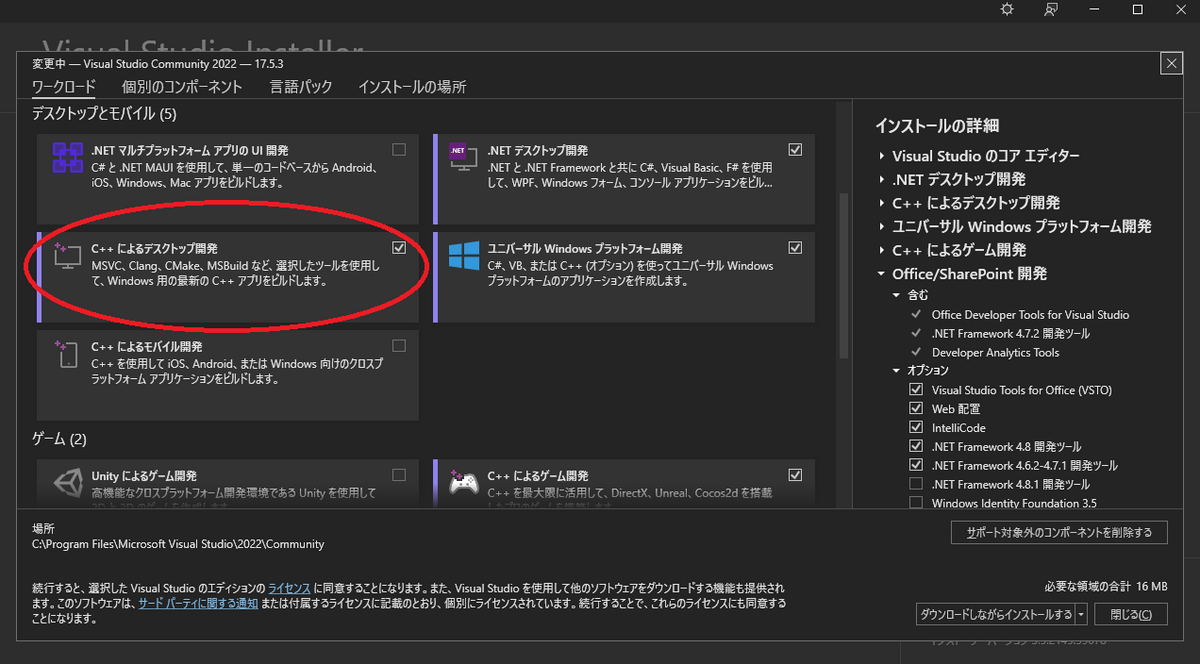
- I am using Visual Studio 2022, so as per the guide, I will need to install "C++ Desktop Development" during installation, or install it using "Get Tools and Features", if I have previously installed Visual Studio without selecting the option.

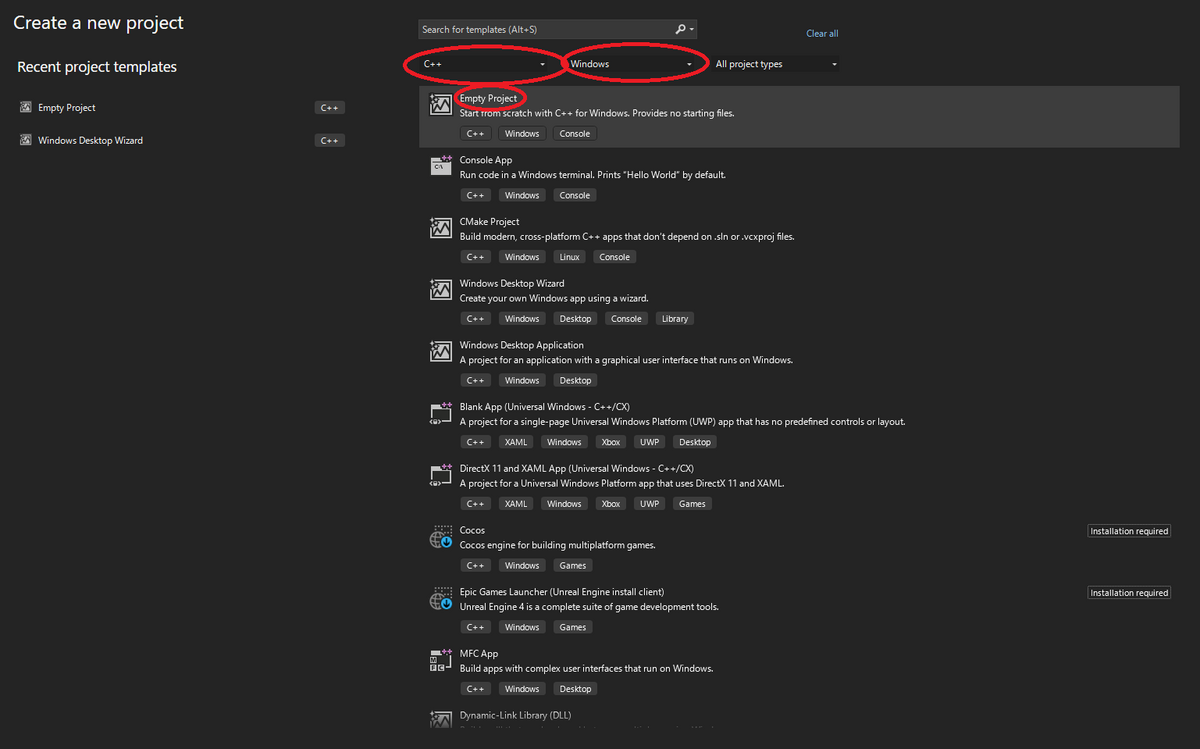
- Create an empty project.
- Right click your project > Add > New Item..., and create a file with the
.cppextension, so further options become available in "Project Properties".
Set project properties. Right click your project > Properties, and set the following:
Change "Configuration" to "All Configurations" and "Platform" to "All Platforms"

- Next, under "Configuration Properties" > "Advanced", change "Character Set" to "Use Multi-Byte Character Set".

- Next, under "C/C++" > "General", add the folder "DxLib_VC/プロジェクトに追加すべきファイル_VC用" to "Additional Include Directiories".
 By the way, the folder name means "files you need to add to project, for Visual Studio C"
 - Next, under "Linker" > "General", do the same thing and add the folder above to "Additional Library Directories".

- Next, under "Linker" > "System", change "SubSystem" to "Windows (/SUBSYSTEM:WINDOWS)"
 Note: This was not in the official DxLib guide, but I couldn't compile the project without changing this setting.
 - Next, change "Configuration" to "Release", and go to "C/C++" > "Code Generation" and change "Runtime Library" to "Mutli-threaded (/MT)"

- Next, change "Configuration" to "Debug", and go to "C/C++" > "Code Generation" and change "Runtime Library" to "Mutli-threaded Debug (/MTd)"
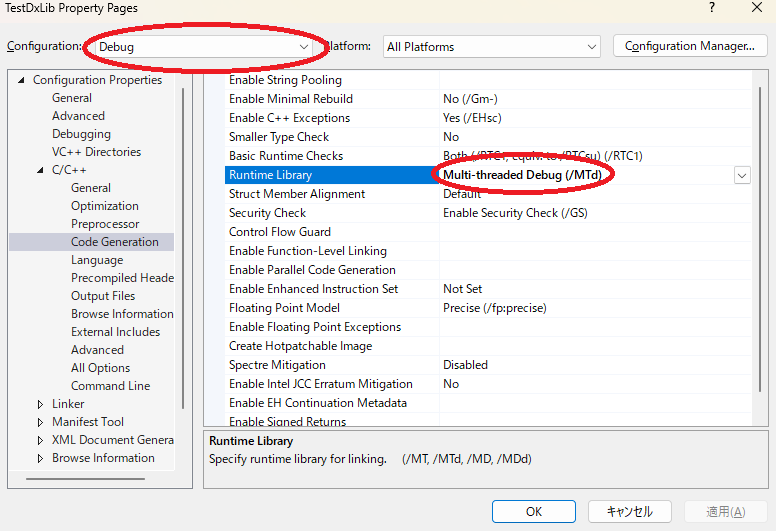
With this done, the basic setup and importing of DxLib is finished. We can now create our first program by creating a window.
This part will be a little different from the official DxLib tutorial, since those instructions cause some warnings regarding WinMain function annotations, but the basic idea is the same.
// Include DxLib library.
#include <DxLib.h>

// The main function to be executed in a Windows application starts with the WinMain function.
// There are 4 parameters to the function, but they are of no concern to us, so just ignore them for now.
int WINAPI WinMain(_In_ HINSTANCE hInstance, _In_opt_ HINSTANCE hPrevInstance, _In_ LPSTR lpCmdLine, _In_ int nShowCmd)
{
    // If initialization of DxLib fails for any reason, end the program immediately.
    if (DxLib_Init() == -1) {
        return -1;
    }

    // Don't do anything until a key is pressed.
    WaitKey();

    // End DxLib.
    DxLib_End();

    return 0;
}
If you managed to compile and run successfully, you have imported DxLib without any problems. You should see a black fullscreen application appear, which closes when you press any key on your keyboard.
In the next part, we will adjust some fundamental settings of DxLib and learn how to show text on screen.
